New Input System Component
The NewInputSystemAdapter is a single component that replaces the three legacy keyboard/mouse/touch components when you're using Unity's New Input System. It reads from Mouse.current, Touchscreen.current, Pointer.current, and a configurable InputActionAsset. Never from UnityEngine.Input.
Note
Use one input family per scene. Don't combine this component with the Legacy Input Components on the same camera, or you'll get double inputs.
Quick start
- Drop
OrbitalCam_NewInputSystem.prefabfrom thePrefabs/folder into your scene. - The action asset (
OrbitalCam_Controls_Default.inputactionsfromSettings/) is already wired into the prefab. - Press Play.
To add the component to an existing camera rig instead, add the NewInputSystemAdapter component to your OrbitalCam and drag the action asset into the component's Actions field.
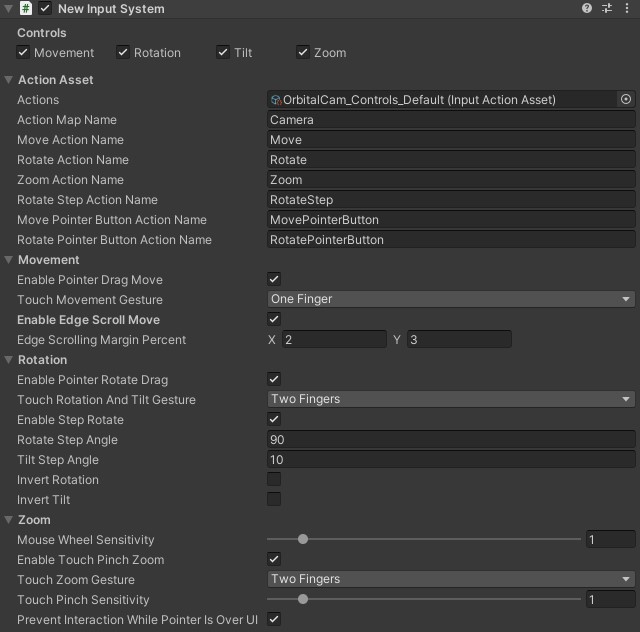
Configuration
A single component covers keyboard, mouse, and touch. It combines the behaviors of the three legacy input components.
Action asset
The Actions field accepts any InputActionAsset with an action map named Camera containing:
| Action | Type | Purpose |
|---|---|---|
Move |
Value / Vector2 | Stick or WASD-style camera movement |
Rotate |
Value / Vector2 | Stick or QE/FC-style continuous rotation + tilt |
Zoom |
Value / Axis | Z/X-style or scroll-wheel zoom |
RotateStep |
Pass Through / Vector2 | Stepped rotation (drains accumulated input on read) |
MovePointerButton |
Button | Mouse-drag-to-move trigger (right mouse by default) |
RotatePointerButton |
Button | Mouse-drag-to-rotate trigger (middle mouse by default) |
The shipped OrbitalCam_Controls_Default.inputactions comes with all six actions already bound. Override the action / map names in the Inspector if you supply your own asset.
Per-axis enables
Top of the Inspector has four toggles: Movement, Rotation, Tilt, and Zoom. They enable or disable that axis across all input sources (stick, drag, scroll, and touch).
Touch gesture choices
For each touch-driven action you can pick which finger count triggers it:
- Touch Movement Gesture -
OneFinger,TwoFingers, orThreeFingers - Touch Rotation And Tilt Gesture -
OneFinger,TwoFingers, orThreeFingers - Touch Zoom Gesture -
TwoFingersorThreeFingers
If two actions share a finger count, their inputs run together (fx. two-finger pan + pinch run concurrently from the same gesture).
Sensitivities and inverts
Mouse Wheel Sensitivity and Touch Pinch Sensitivity let you tune the zoom amount from each source separately. Invert Rotation / Invert Tilt flip the drag-rotate direction.
Don't combine input adapters
Use one input-component family per scene. Don't combine LegacyMouseInputAdapter with NewInputSystemAdapter on the same camera, or you'll get double inputs. Mouse drag would translate the camera twice, and the scroll wheel would zoom twice as fast. The UI Buttons component is backend-independent, and works safely with either family.
The camera Inspector will warn you about misconfigurations. If you accidentally mix families, or if the active backend can't reach your components, the OrbitalCameraSystem Inspector will show a HelpBox warning at the top.
NB: Setting up the New Input System in your project
If your project isn't on the New Input System yet, you'll need to enable it before the component can function.
- Install the Input System package.
Window → Package Manager → Unity Registry → Input System → Install. - Switch Active Input Handling.
Project Settings → Player → Other Settings → Active Input Handling. Set to Both (recommended; keeps your legacy code working too) or Input System Package (New). Restart the editor when prompted. - Swap the EventSystem input module. Every scene that has a UI / EventSystem still uses
StandaloneInputModule. That module calls into the Legacy Input Manager, and throws an exception when the New Input System is the only active backend. Select theEventSystemGameObject and click Replace with InputSystemUIInputModule in its Inspector. - Drop in the component. Either use the
OrbitalCam_NewInputSystemprefab, or addNewInputSystemAdapterto your existing OrbitalCam and assign the action asset.
Not familiar with the New Input System?
Unity's Input System documentation covers installation, activation, and the action-asset workflow. One gotcha for OrbitalCam that isn't very visible in Unity's docs: when you switch Active Input Handling to include the new system, existing scenes' EventSystem still uses StandaloneInputModule, which throws InvalidOperationException when only the New Input System is active. Swap it for InputSystemUIInputModule. Unity shows a one-click replacement button in the StandaloneInputModule Inspector when it detects this.