Legacy Input Components
There are three input components for the Legacy Input Manager: keyboard, mouse, and touch. Each is added as a child of the OrbitalCam GameObject, and the camera picks them up automatically. Add only the ones you need. The UI Buttons component is backend-independent and lives on its own page.
Note
Use one input family per scene. Don't combine these legacy components with New Input System Component on the same camera, or you'll get double inputs.
Adding components
Add Component → Goehler Studios → Orbital Cam → Input → …. The three legacy components are listed there: Legacy Keyboard, Legacy Mouse, and Legacy Touch. The same submenu also has the UI Buttons component, which works with either backend.

Legacy Keyboard
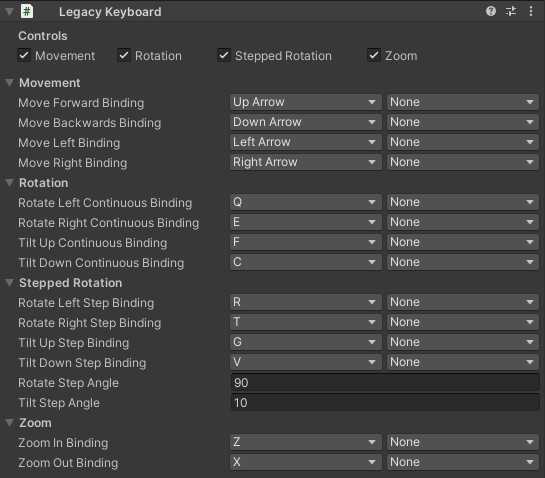
Adds keyboard control for Move, Continuous Rotate/Tilt, Stepped Rotate/Tilt, and Zoom. Each axis has its own enable toggle at the top of the Inspector. Expand the foldouts below to assign the keys for each direction.
Each binding is a KeyBindingSource. SingleKeyBinding is the default, and lets you pick a KeyCode plus optional KeyModifiers (Shift / Control / Alt). The same key can drive Continuous Rotate and Stepped Rotate when paired with different modifiers. The default WASD + Shift+QECF scheme uses this trick.
Rotate Step Angle and Tilt Step Angle control how many degrees the camera snaps by, with each step rotation key-press. Pairs with the Stepped Rotation World Snap toggles on the main OrbitalCameraSystem component. See All Controls Explained.
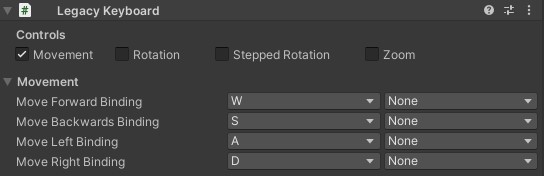
You can add multiple Legacy Keyboard components to the same rig, if you need to bind alternative keys to the same action, like fx. WASD for movement.
Legacy Mouse
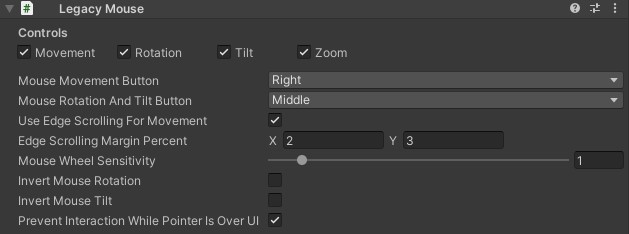
Adds mouse control for drag-to-pan, drag-to-rotate-and-tilt, and mouse-wheel zoom. Top of the Inspector has independent toggles for Movement, Rotation, Tilt, and Zoom.
- Mouse Movement Button / Mouse Rotation And Tilt Button -
MouseButtonenum (Left / Right / Middle / Side / Extra). Don't bind the same button to two actions. - Mouse Wheel Sensitivity - multiplier on scroll input.
1.0is default, lower is slower, higher is faster. The overall zoom speed is set in the main component's Speeds section; this one is just for balancing between input sources. - Invert Mouse Rotation / Invert Mouse Tilt - flip the drag direction on each axis.
- Use Edge Scrolling For Movement - when enabled, the camera pans when the cursor is near the screen edges. The margin (as a percentage of screen width/height) is configurable. Off by default.
- Prevent Interaction While Pointer Is Over UI - blocks drag and wheel input while the cursor is over any UI element. Requires an
EventSystemin the scene.
Legacy Touch
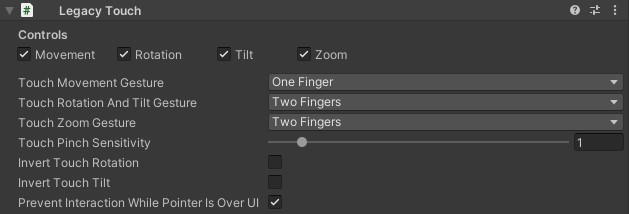
Adds touch control for drag-to-pan, drag-to-rotate-and-tilt, and pinch zoom. Built for mobile and touchscreen targets.
- Touch Movement Gesture / Touch Rotation And Tilt Gesture - pick which finger count triggers each, from the
TouchGestureenum:OneFinger,TwoFingers, orThreeFingers. The two gestures can share a finger count and fire concurrently from the same touches. They look at different aspects of the input: move tracks centroid translation, rotate tracks the same centroid as a delta. - Touch Zoom Gesture - separate
PinchGestureenum (TwoFingersorThreeFingers. Pinch needs at least two contact points). For three-finger pinch, the average pairwise distance is used. - Touch Pinch Sensitivity - same idea as the mouse wheel sensitivity: a balancing multiplier for this input source.
- Invert Touch Rotation / Invert Touch Tilt - independent direction flips.
- Prevent Interaction While Pointer Is Over UI - blocks drag and pinch when both fingers (in a pinch) are over UI.