Scripting Demo
This scene contains a lot of buttons, each of which calls one of the public methods on the OrbitalCameraSystem. Use it as a reference to see what each method does.
You can read a detailed explanation of the Public API here.
This demo scene uses the Legacy Input Components. But the scripting API works with any input system.
Note
Any method that take a single float parameter can be wired directly to a Unity Button's On Click event list. These methods are marked with bold below. Methods that take vector parameters can only be called via a custom script.
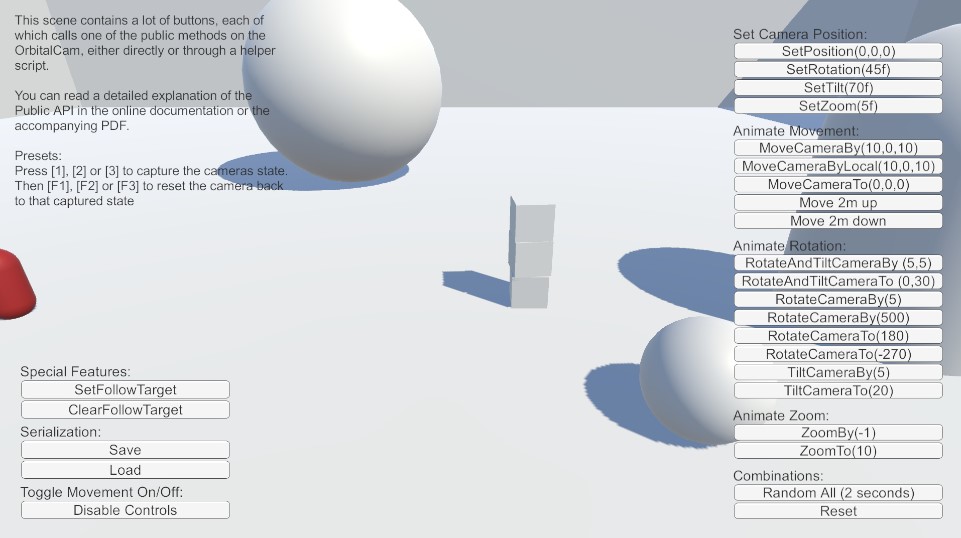
Setting the camera position
The camera position can be set (instantly, without any animation) with the following 4 methods:
- SetPosition (Vector3)
- SetRotation (float)
- SetTilt (float)
- SetZoom (float)
Animations
The camera can be animated with the following methods.
Movement
There are 4 different move methods available:
- MoveCameraBy (Vector3)
- MoveCameraByLocal (Vector3)
- MoveCameraTo (Vector3)
- MoveCameraUpByLocal (float)
Rotation
There are 6 different rotation/tilt methods available:
- RotateAndTiltCameraBy (Vector2)
- RotateAndTiltCameraTo (Vector2)
- RotateCameraBy (float)
- RotateCameraTo (float)
- TiltCameraBy (float)
- TiltCameraTo (float)
Zoom
There are 2 different zoom methods available:
- ZoomCameraBy (float)
- ZoomCameraTo (float)
Combinations
You can combine the animations, and play several at the same time. Obviously, only one animation from each category can be run simultaneously. So you can animate movement, rotation, tilt, and zoom, all at the same time.
Presets
Press 1, 2, or 3 to capture the current camera state into a preset slot, and F1, F2, or F3 to recall it. Slot values are also visible in the Inspector on CameraPresetsDemo, and can be set up in advance without entering Play mode. See the presets example for the code.
Following a target
If you need the camera to follow a target, you can use the Special Feature methods: SetFollowTarget and ClearFollowTarget.
Note
This will disable all the movement inputs, and the player will only be able to rotate, tilt, and zoom the camera while following the target.
Saving and loading
The state of the entire camera rig can be serialized and saved to disk, then reloaded at a later time. See the save and load example for the code.
Pausing player input
The Toggle Input button flips every mouse, touch, edge-scrolling, zoom, and keyboard/UI input flag in one call. Click it, then try to drag or scroll—the camera ignores everything until you click again. See the pause input example for the code, and to see how to disable just one input category instead of all of them.